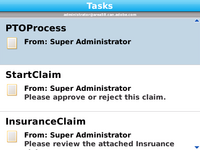
To access your Tasks list, press the menu key from either
the Forms or Documents screen, then select Tasks.
Tasks are assigned to you as a part of a business process. Depending
on the preferences you have set, the Tasks list displays all of
the tasks assigned to you, or only the tasks that can be completed
on a mobile device. (See Setting task preferences.)
When a task is nearing its due date, the deadline date is displayed
in orange. When it is past its due date, the deadline date is displayed
in red. You can set your preferences to sort your task list by deadline.
(See Setting task preferences.)
To complete a task, click it in the list and follow the instructions
provided on the Task Details screen.
If the task you are viewing is part of a business process that
prevents you from completing the task without opening it, you cannot
complete the task from your mobile device. Log in to Workspace to
complete the task.
Clicking the underlined “From” name on the Task Details screen
displays a pop-up window containing contact information for that
person. You can click the phone number to place a call, or click
the email address to create a new email message.