Import PDF comments
You can import comments from a review PDF directly into the source FrameMaker document and reduce the time taken to fix comments. You can incorporate suggestions and edits from multiple reviewers participating in a shared PDF review much faster into the source document.
You can import comments only from PDFs created using FrameMaker 9 or above.
Importing comments from PDF after changing the source document
You can change the source in FrameMaker while its PDF output is being reviewed and still import PDF review comments.
You can make the following changes to the source FrameMaker content and still import the PDF review comments:
•Change in the relative position (as per the line numbers) of the paragraph in the source FrameMaker document
•Change in the text around (before\after) the commented text in the paragraph in the source FrameMaker document
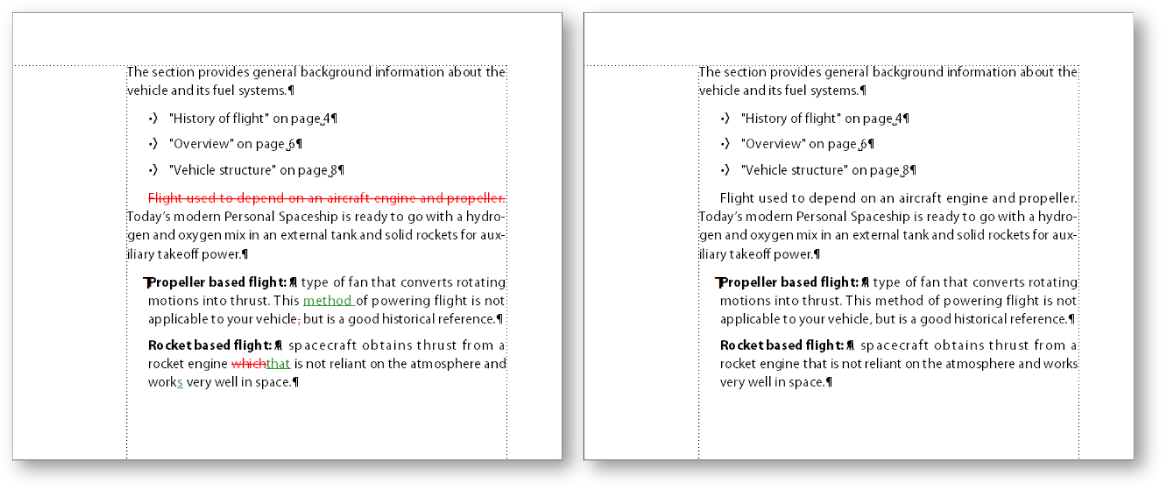
Change bar applied to the left of revised text
See the video: PDF Review Enhancements.
Importing PDF comments in an edited unstructured source document
When saving a FrameMaker file as a PDF, ensure that you select the Generate For Review option in the PDF Setup For Selected File dialog. Selecting this option creates a tagged PDF.
Import PDF comments in edited structured content
To use PDF import comments in the XML content:
1)Assign the IDs to all the elements in your content before you create a PDF for review.
2)Ensure that you select the Generate For Review option in the PDF Setup For Selected File dialog.
For assigning the IDs, you need to ensure that all your elements have an ID attribute (not case-sensitive - could be id, Id, ID, or iD) or an attribute with the type UniqueID.
If any of the elements in the document does not have these IDs, you need to make changes to your XML structured application to include the ID or UniqueID attributes in the elements.
Getting started with structured applications
Conditions for importing PDF comments in edited documents
1)In .fm and .mif documents, if you drag-and-drop any para anywhere in the document, the import PDF comments functionality does not work correctly.
2)If a PDF review comment spans over two paragraphs and you edit the source within the comment, the comment gets imported on the edited content as well.
3)If due to copy pasting, duplicate IDs exist for multiple elements in the source document, the PDF comments will be imported for the first instance of the ID and the subsequent, duplicate instances are ignored.
4)In a book, if chapters are moved up and down after generating PDF for review, Import PDF comments do not work correctly.
5)If the text that is commented on in the PDF is changed in the source, the comment is imported as a marker with the type comment. You can view these markers in the marker pod.
Types of comments supported
FrameMaker can import the following types of PDF comments and annotations:
•Text additions
•Text deletions
•Text replacements
•Sticky notes
•Underlined text
•Highlighted text
Other types of comments or annotations are not imported.
Placement of comments
When you import the PDF comments, they are inserted at the same location in the source FrameMaker document as tracked text edits, tracked markers, or simple text formatting. Text additions, deletions, and replacements are inserted as text edits. Sticky notes are inserted as comment type markers. FrameMaker tracks these text edits and markers irrespective of whether the feature is enabled or disabled.
PDF comments of type Highlight are imported with the highlighting retained due to the implementation of the Text Background Color feature.
If the source document has changed after you sent the PDF for review, the exact insertion points for some comments can be indeterminable. FrameMaker inserts such comments as tracked markers in approximate locations. Comments applied to unnamed text flows, non-text objects, or objects locked for editing are also inserted in approximate locations as markers.
note: FrameMaker does not allow insertions into objects like variables, text lines, and graphics. Also, cross-references, text insets, bullets, and numbering are locked for editing in FrameMaker. Comments on these objects are inserted as markers. If a reviewer adds a comment in response to another comment in the PDF, it is inserted as a marker.
Import comments
1)Open the document or book file to import PDF comments.
2)Click File > Import > PDF Comments.
3)Read the instructions in the Import Comments From Adobe Acrobat dialog box. Click Yes to proceed.
4)In the Import Comments From PDF dialog box, choose the PDF file from which you want to import comments.
5)Select the types of comments that you want to import.
All comments
Select to import all supported types of comments from the PDF.
Only Insert, Delete, and Replace type of comments
Select to import only text additions, deletions, and replacements.
Apply custom filters
Select to specify filters for the comments that you want to import. You can filter comments by parameters like type, author, status set by the author, checking state, and insertion date.
6)If the source document was modified after you created the PDF for review, FrameMaker confirms whether you want to proceed with the import.
If the modification date of the source file is newer than the creation date of the tagged PDF, FrameMaker confirms whether you want to proceed with the import.
7)FrameMaker imports the comments from the PDF and displays an import summary. The summary displays the number of comments that FrameMaker imported and placed in their exact locations, imported and placed in approximate locations, and failed to import.
8)Click OK to close the Import Summary dialog box and return to the document window.