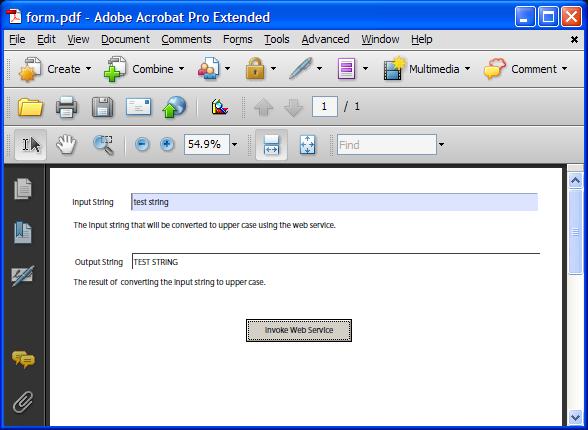
The sample demonstrates how to invoke web service from a PDF form, the process implements converting the input string to uppercase. And when you open that prepared form, and click Invoke Web Service, the process starts.
Click Services > Applications and Services > Application Management.
Click the LiveCycle Applications (9.x) tab and click Import.
Click Browse to locate the sample LiveCycle ES2 archive (LCA) file Adobe-Samples-Service-Forms.lca, and then click Preview.
Select Deploy assets to runtime when import is complete and click Import.
Configuring the sample
WSDL Configuration in LiveCycle Designer
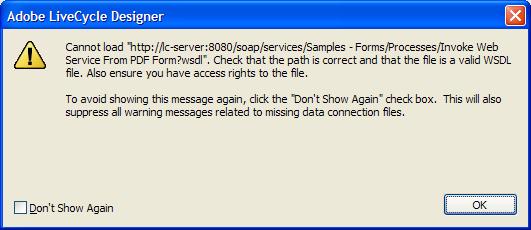
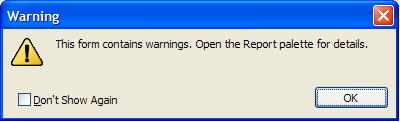
Open the collateral file form.xdp in LiveCycle Designer (ensure that LiveCycle Designer installed on your machine). You may get two warning messages in LiveCycle Designer as the following figures show, click OK to ignore.
LiveCycle Designer, select Window > Data View, then from the Data View tree in the left sidebar, see a Data Connection named DataConnection.
Right-click DataConnection, and choose Connection Properties… from context menu. A Connection Properties window opens, move to the second page of this window toedit the path of WSDL File. Change the placeholder [default is lc-server: 8080] to the actual hostname and port number where this sample is deployed. Click Next, select invoke in the box Select an operation. Click Next, and then click Finish.
To save this file, click File > Save from main menu.
Running the sample
In LiveCycle Designer, open the form.xdp again. Click Save As from main menu, input form as the filename. Choose Adobe Static PDF Form (*.pdf) in the save as type, and you can choose your local path to store the file, click Save.
Open the saved PDF file form.pdf using Adobe Acrobat Pro.
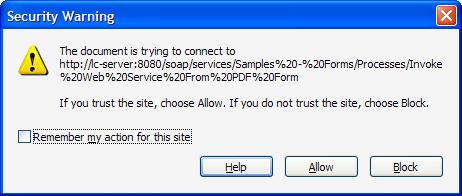
Type some characters in the inputString field, then click the button Invoke Web Service, following error message displays:
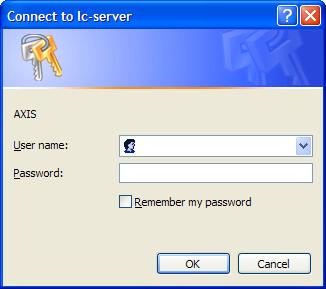
Click Allow to allow this operation, another dialog box displays:
Input credential for AXIS, you can use sample users or administrator, click OK.
The uppercase of the input string displays in the Output String field:
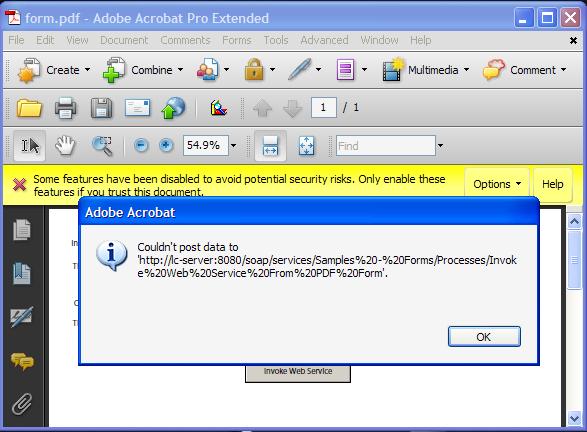
Troubleshooting: If you receive the following warning after input credential for AXIS in step 5, click OK, then in the yellow frame, click Options. Choose "Trust this document always", and save the document. When suggestive dialog displays again, type some characters in the inputString field and click Invoke Web Service to display the correct output string.
Next steps
You can also render the form.xdp using FormService or Forms Installation Verification, and then repeat the step 2 of Running the sample.
Legal disclaimer
Any references to company names, company logos, and user names in sample material or sample forms included in this documentation and/or software are for demonstration purposes only and are not intended to refer to any actual organization or persons.
Service Sample - LiveCycle ES2 - Forms - Invoke Web Service From PDF Form-
07/15/2011 2:54 PM
LiveCycle ES2 (9.0.0.2) - September 2010
[an error occurred while processing this directive]