|

Add a LiveCycle Server to your list of available servers Tap menu at the bottom of the screen and
then tap  .The
Preferences screen appears. .The
Preferences screen appears.
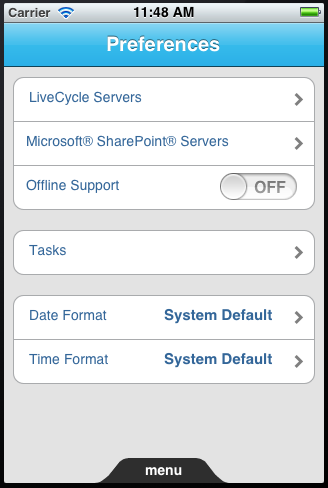 Preferences screen Tap LiveCycle Servers. The Servers screen appears.
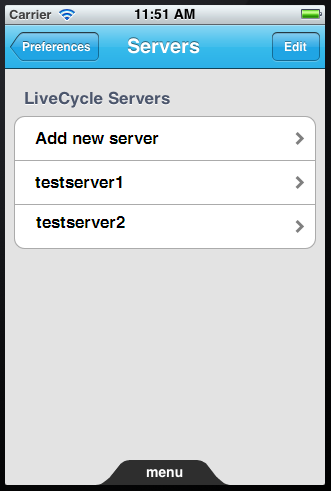 Servers screen Tap Add New Server. Specify the following information on
the Server screen:
Host Name: Host name of
the LiveCycle Server. Contact your administrator if you do not have
the necessary information.
Port: The port number used by LiveCycle
SSL: Select this option to use SSL when connecting
to the server
Server Name: Description of the server and user account
User Name: User name that you use to connect to the
server
Password: The password you use to connect to the server
Tap Save.
Edit the settings for an existing serverOn the Servers screen, tap the name of the server.
Edit the server information as required and click Save.
Remove a server from the listOn the Servers screen, tap Edit.
Tap the minus (-) button next to the server that you want
to remove. Tap Delete and then Done.
Switch between configured servers/user accountsIf you have configured more than one user account, you
can switch between those accounts to access your different task
and forms lists.
If the Tasks or Forms screen are already displayed, tap
Servers at the top of the screen.
Otherwise, tap menu and
tap Tasks  or
Forms or
Forms  . A
list of available servers appears. . A
list of available servers appears.
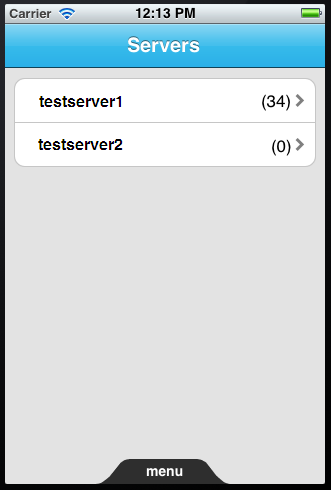 List of configured accounts Select a server from the list. The Tasks or Forms list for
that server appears.
|
|
|


