|

You can specify how LiveCycle Mobile handles the tasks
in your Tasks list. You can also specify how it displays dates and
times and enable offline support.
Specify task preferences(iPhone) Tap menu at the bottom of
the screen and then tap  . The
Preferences screen appears. . The
Preferences screen appears.
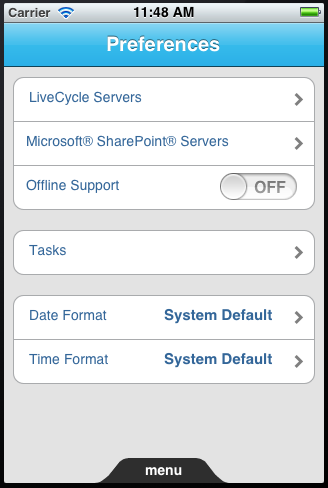 iPhone Preferences screen On the Preferences
screen, tap Tasks. The Task Preferences screen appears
(iPad) On
the main Menu tap the Preferences icon  at
the bottom of the screen. The LiveCycle Settings screen appears. at
the bottom of the screen. The LiveCycle Settings screen appears.
On the Task Preferences screen (iPhone) or LiveCycle Settings
screen (iPad), specify the following options:
Show Shared Queue Tasks: A
shared queue is a task list that another user has shared with you
so that you can view and complete their tasks. When this option
is set to On, tasks from shared queues are displayed in your task list.
Show Overdue Tasks: When this option is selected,
tasks that have passed their deadline are displayed in your Tasks
list. When it is not selected, overdue tasks are removed from your
Tasks list.
Show Only Mobile Tasks: When this option is selected,
the Tasks list on your iPhone or iPad displays only tasks that can
be completed on a mobile device.
Sort Tasks: Specifies whether to sort the tasks in
your list by date or by deadline.
Specify date and time preferences(iPhone) On the Preferences screen, select
a Date Format or Time Format and tap Save.
(iPad) On the LiveCycle Settings screen, select a
Date Format or Time Format and tap Save.
Configure offline supportIf your administrator has enabled offline support, you
can select the Offline Support option on the Preferences screen
(iPhone) or on the LiveCycle Settings screen (iPad). When this option
is selected, you can continue to use LiveCyclewhen your device has
no WiFi or mobile connectivity.
When offline support is enabled and you lose connectivity, you
can continue to use any tasks, forms, or documents that are on your
device. When you submit a task or form, it is saved in your queue.
To see the contents of your queue, tap the Queue icon. On iPhone,
tap menu at the bottom of the screen and then tap  . On
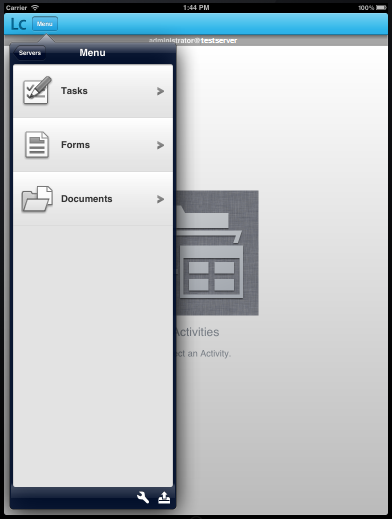
iPad, the Queue icon is at the bottom of the main menu: . On
iPad, the Queue icon is at the bottom of the main menu:
iPad menu with Queue icon in the lower-right corner When you regain connectivity, LiveCycleautomatically submits
all queued tasks and data to the server.
A few tips about working offline: Some forms contain
an Update button that connects to the server to perform calculations
and validations and then updates data in the form. If you tap an Update
button while working offline, you get an error message because the server
is unavailable.
When a server connection is restored, items in your Queue
are automatically sent to the server. If a queued form contains
a validation error, the server returns it to your Queue.
If you disable offline support while you are offline, all
pending tasks are returned to your Tasks list. All items in your
Queue, including pending forms, tasks, and forms containing validation
errors, are deleted from the Queue.
|
|
|