Work with the find and change dialog in FrameMaker.
To open the Find/Change dialog, choose .
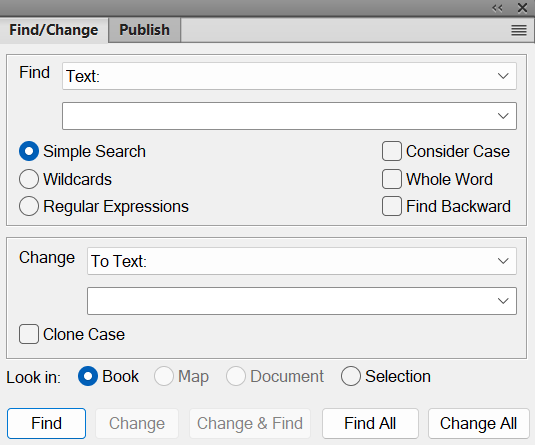
- Find
- Select the type of FrameMaker item to search. You can search
for text and other Structured authoring.Note: Whatever text that you search for gets stored in the Find drop-down list. The search history is maintained across FrameMaker sessions.
- Simple Search
- Searches as per the text entered in the Find field.
- Wildcards
- Searches based on the wildcard rules defined in the Find field:
- Regular Expressions
- Searches based on the regular expression defined in the Find field.
- Consider Case
- Case-sensitive search
- Whole word
- Search for a whole word. For example, the search for the whole
word
so, findssobut notsoon. - Find Backward
- By default, the Find functionality searches from the start to the end of a document or book. Choose this option to search backwards.
- Change
- Select the item type to change the found item.
- Change All
- FrameMaker displays the following details if some or no changes
are done:
- Total number of changes requested: <number of objects found with the searched style>.
- Success: <Number of objects changed successfully>
- Failed: <Number of objects which have not been changed>
- Find All
- Find All allows you to view all the instances where the text has been used. The search results are displayed in a separate dialog where you can closely review each instance. You can also double-click an instance to view the exact place where the text has been used in the associated file.
- Note: Find All works only with saved documents. Ensure that all documents are saved before using this feature.
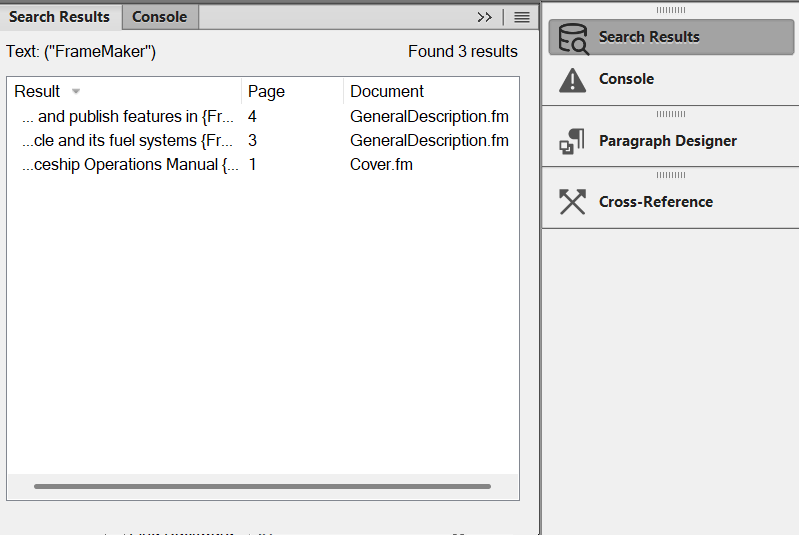
Find All supports the following types of content:
- Cross-Ref any
- Cross-Ref of format
- Cross-Ref unresolved
- Marker
- Marker of text
- Marker of type
- Text Inset any
- Text Inset unresolved
- Variable any
- Variable of name
- Text
The Find All feature also supports whole‑word and partial‑word matching, regular expression (regex) searches, wild card, and case‑sensitive results.
- Clone Case
- Ensure that the changed item follows the same casing as the
found item. For example, find
soand change tosoonwith Clone Case selected changesotosoonandSotoSoon. - Look in
- Choose to find for items in a book, map, document, or current selection.
Search within nested DITA maps
FrameMaker provides the feature to search for different types of content within the nested DITA maps. For example, when you search for a string in a DITA map, FrameMaker also searches for it in all the DITA maps nested in the current map.
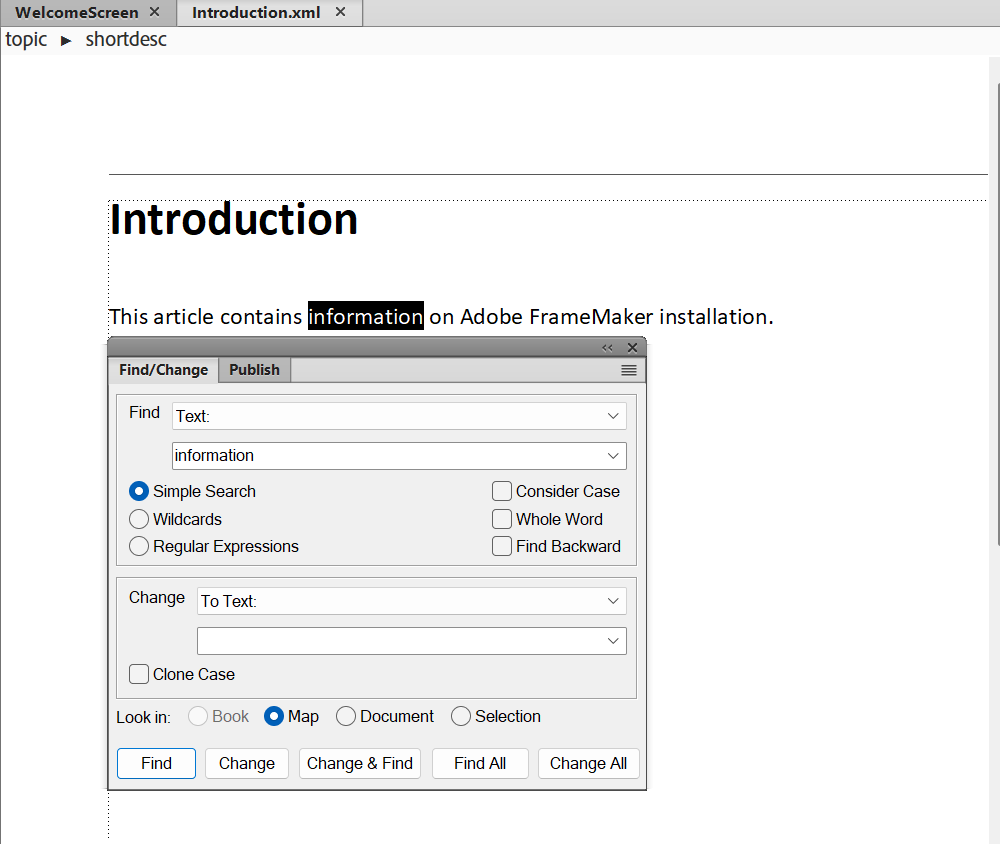
FrameMaker opens all the nested DITA maps one by one and searches the string in them:
- If the document contains the string, it is opened, and the text is highlighted.
- If the document does not contain the string, the search continues with the following document.
Once the search is complete, FrameMaker displays a success message as Finished searching (if the string is found and highlighted) or a failed message as Not found (if no instances are found).
You can Find and then Change the text in nested DITA maps. The text is replaced in the files, and you are prompted to save them when you try to close them.
The Change All feature helps you quickly find and replace all occurrences of a string within many nested maps. It enables you to maintain consistency. For example, you can quickly change the string “FrameMaker” with “Adobe FrameMaker” in all the nested DITA maps.Find and change the object styles
To find an object with a specific object style applied, do the following:
- Open the .fm document in which you want to search the objects with specific object styles applied to them.
Select Object Style Tag in the Find drop-down list.
Select the object style that you want to search. For example, MyRed object style.
Warning: You must search for a correct object style; else you will get an error.If you want to search all objects which have any or no object style applied on them, select Anchored Frame from the Find drop-down list. This will help you to search all objects present in anchored frames and apply a specific object style to all of them in one go.
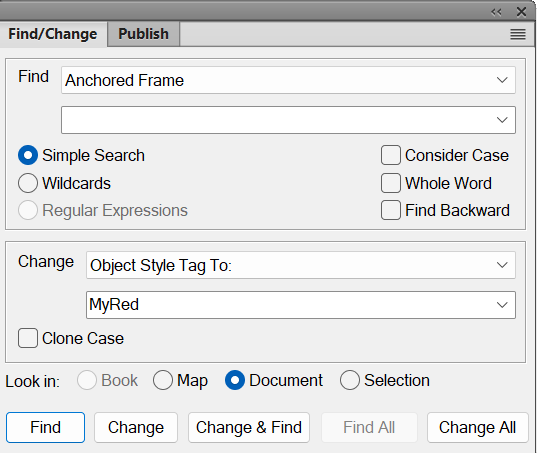
- Select Object Style Tag To: from the Change drop-down list.
Select the object style that you want to change to. For example, MyRed object style.
Note: If you try to apply an object style that has a property which is not valid for the selected object, you will get an error. For example, you cannot set Runaround properties for an anchored frame.Click Find.
FrameMaker finds the object wilt the selected object style. If no objects with the select style are present, then you get an error.
When FrameMaker finds the object, do one of the following:
To apply the change to the current object only, and stop the search, click Change.
To apply the change to the current object, and then continue searching for the next occurrence, clickChange & Find.
Warning: You must search for a correct object style in the Change dropdown list, else FrameMaker displays an error when you try to change the object style.To find all the occurrences of the object, click Find all.
To change all occurrences of the found objects in the document or only the occurrences in the current selection and click Change All.
You can refer to the console for details about the failed changes and do a Find/Change again after fixing the issues.
FrameMaker displays a success message on changing the object style of all the objects which have the searched object style.