Understand how to manage variables and conditional tags in your book file using the .MLT template file.
In Adobe FrameMaker, you can centrally manage variables and conditional tags using a book-level template (.MLT file). From the template, you can add, edit and delete definitions and apply the updates to all documents in the book at the same time. FrameMaker also helps you resolve conflicts that occur when variables or conditional tags with the same name are being used across documents in the book.
Resolve duplicate name conflicts
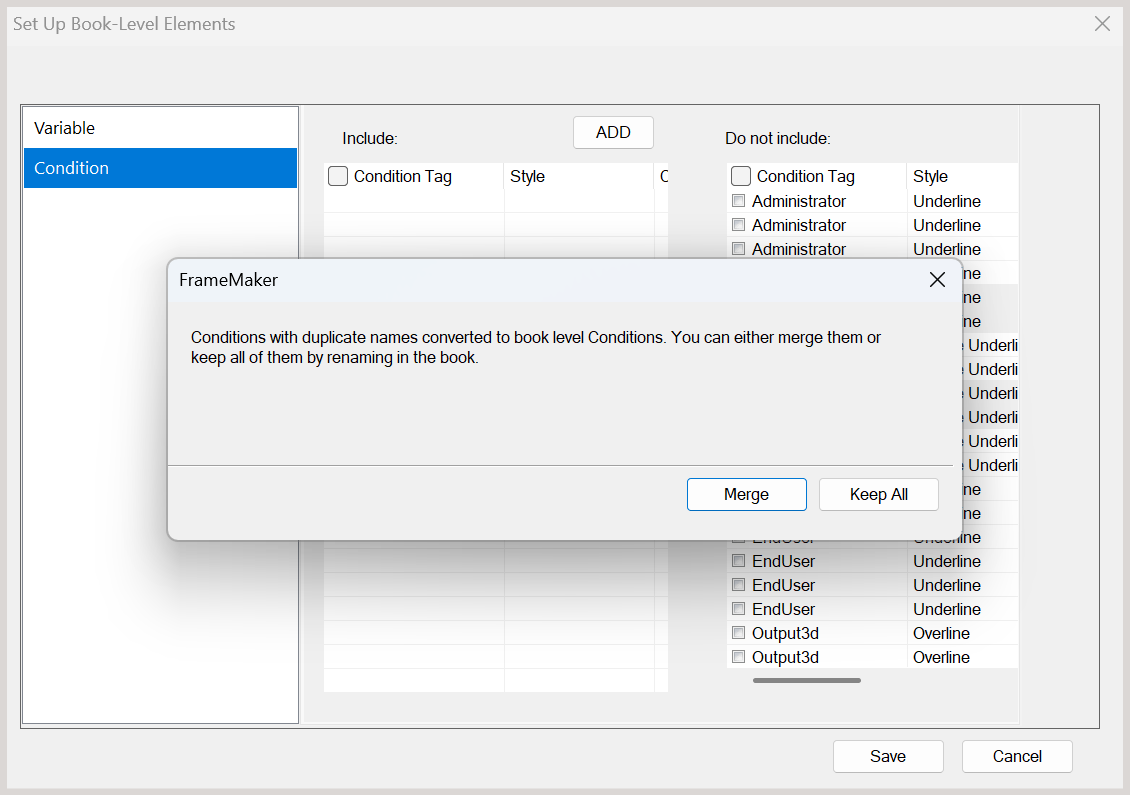
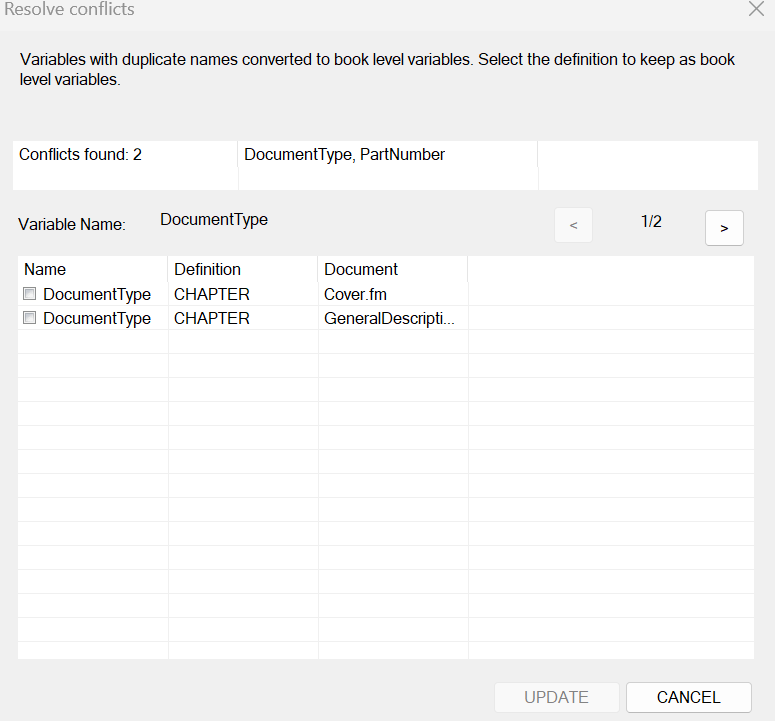
If you choose Keep All, all versions of the template element are retained and moved to the Include list. To ensure that each element has a unique name, FrameMaker automatically renames the duplicates by appending an index.
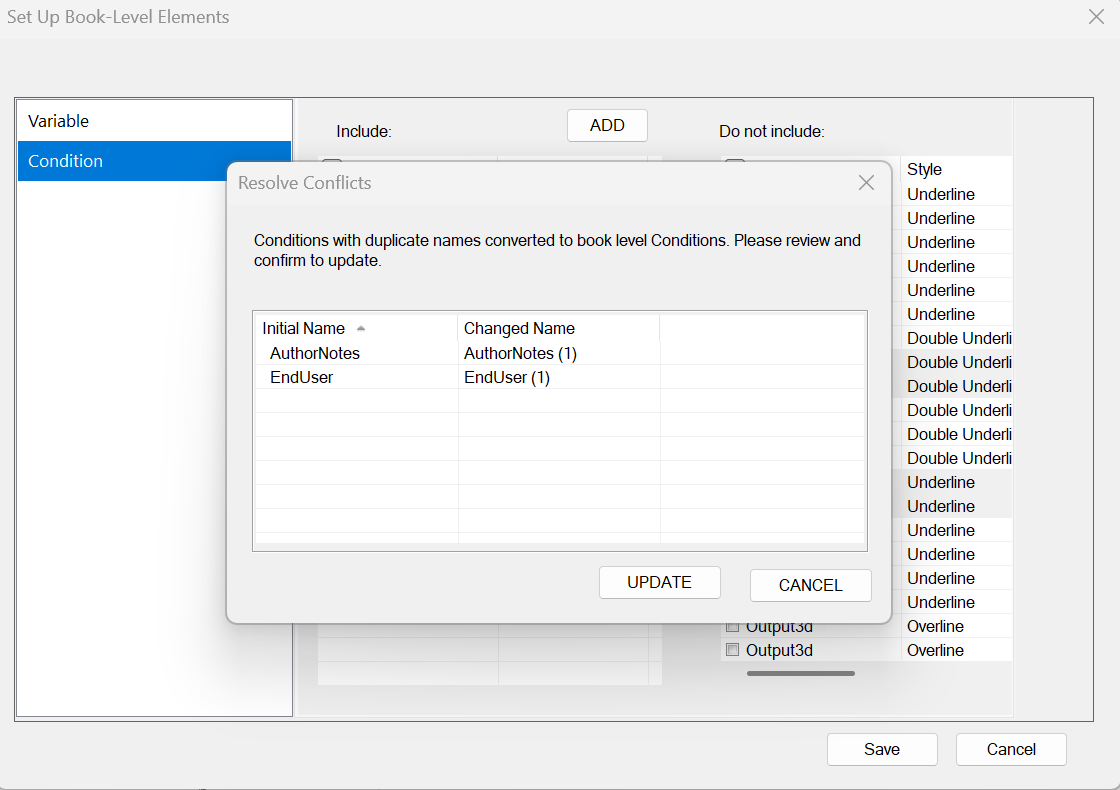
For example, if two documents contain duplicate conditions named AuthorNotes and EndUser, selecting Keep All includes all versions of the conditions. One condition retains the name (AuthorNotes and EndUser), while the other is renamed to AuthorNotes(1) and EndUser(1) as shown below:
After the Merge or Keep All operation, you can click Save to save the selected entries to the book-level template (.MLT file).
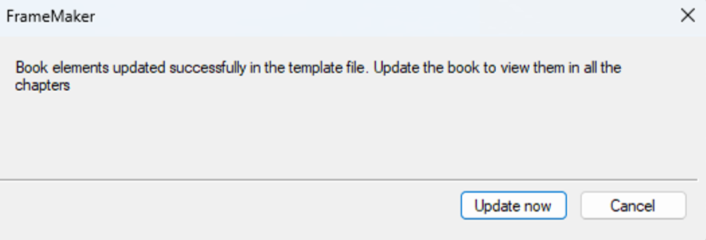
If required, you can also use the Update now button that allows the new selections you saved in the template to propagate to all documents in the book., otherwise click Cancel.
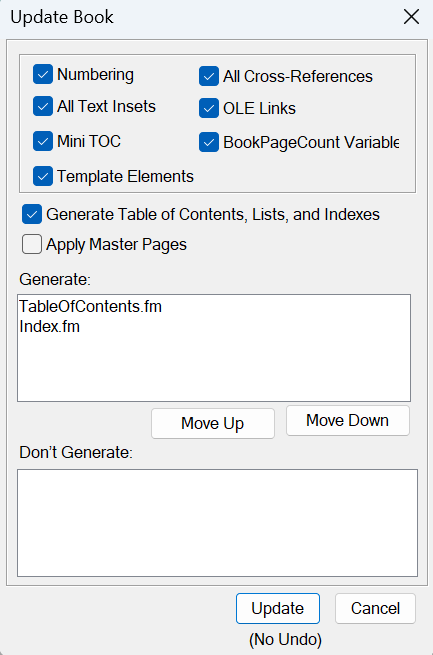
In the Update Book dialog, ensure that you select Template Elements option to include them in the book update operation.
Edit a template element
You can edit the properties of a variable or conditional tag defined for the book-level template file.
Open the FrameMaker book file and then open the .MLT file (book-level template file).
Open the Variables or Conditional Tag panel.
Select the element you want to change and update its properties as needed.
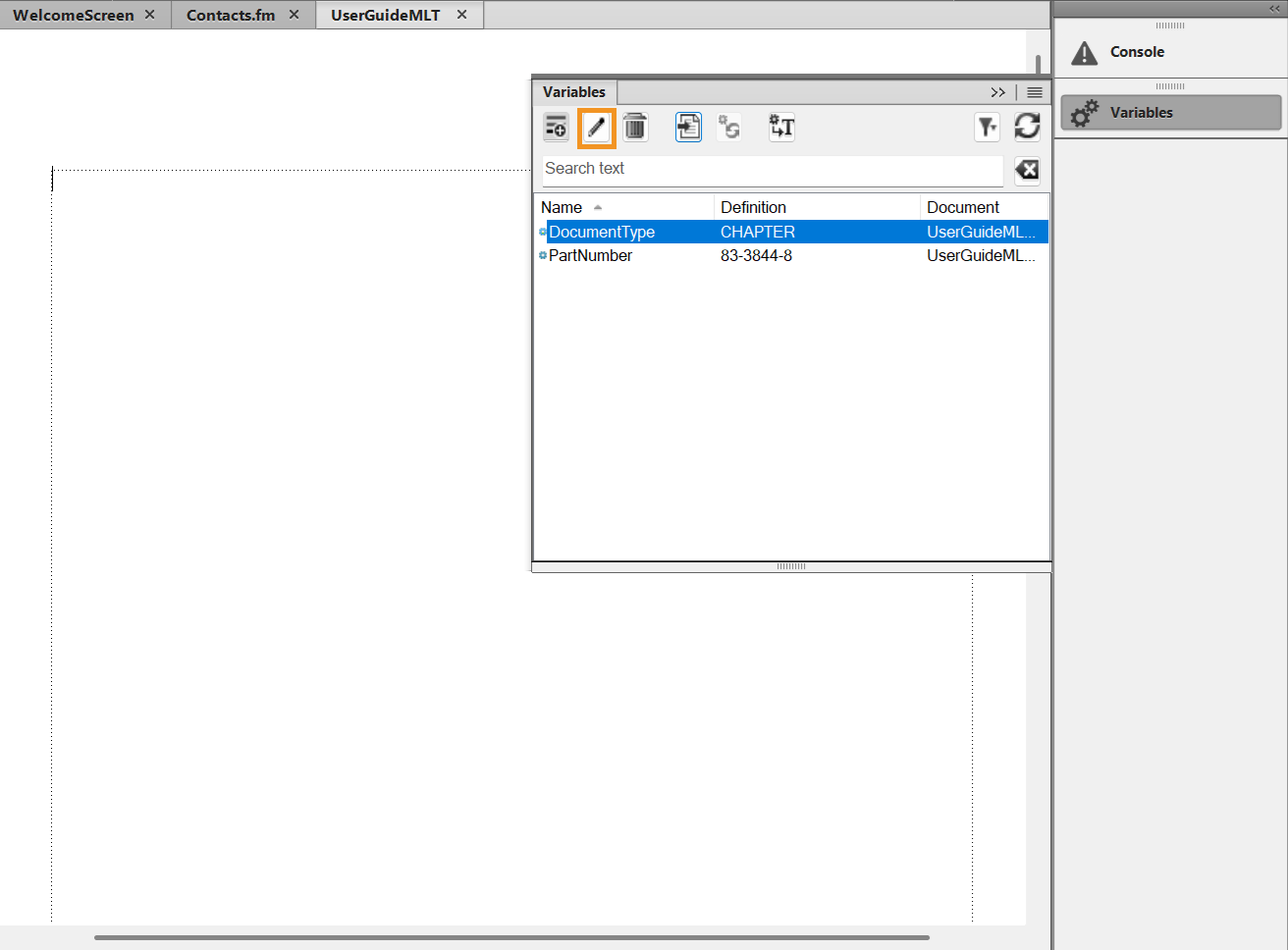
Click OK to save.
For more information on how to edit a variable, see Edit Variables. For details on how to edit a conditional tag, see Edit Conditional Text.
Delete a template element
You can delete a variable or conditional tag defined for the book-level template file.
Open the FrameMaker book file and then open the .MLT file (book-level template file).
Open the Variables or Conditional Tag panel.
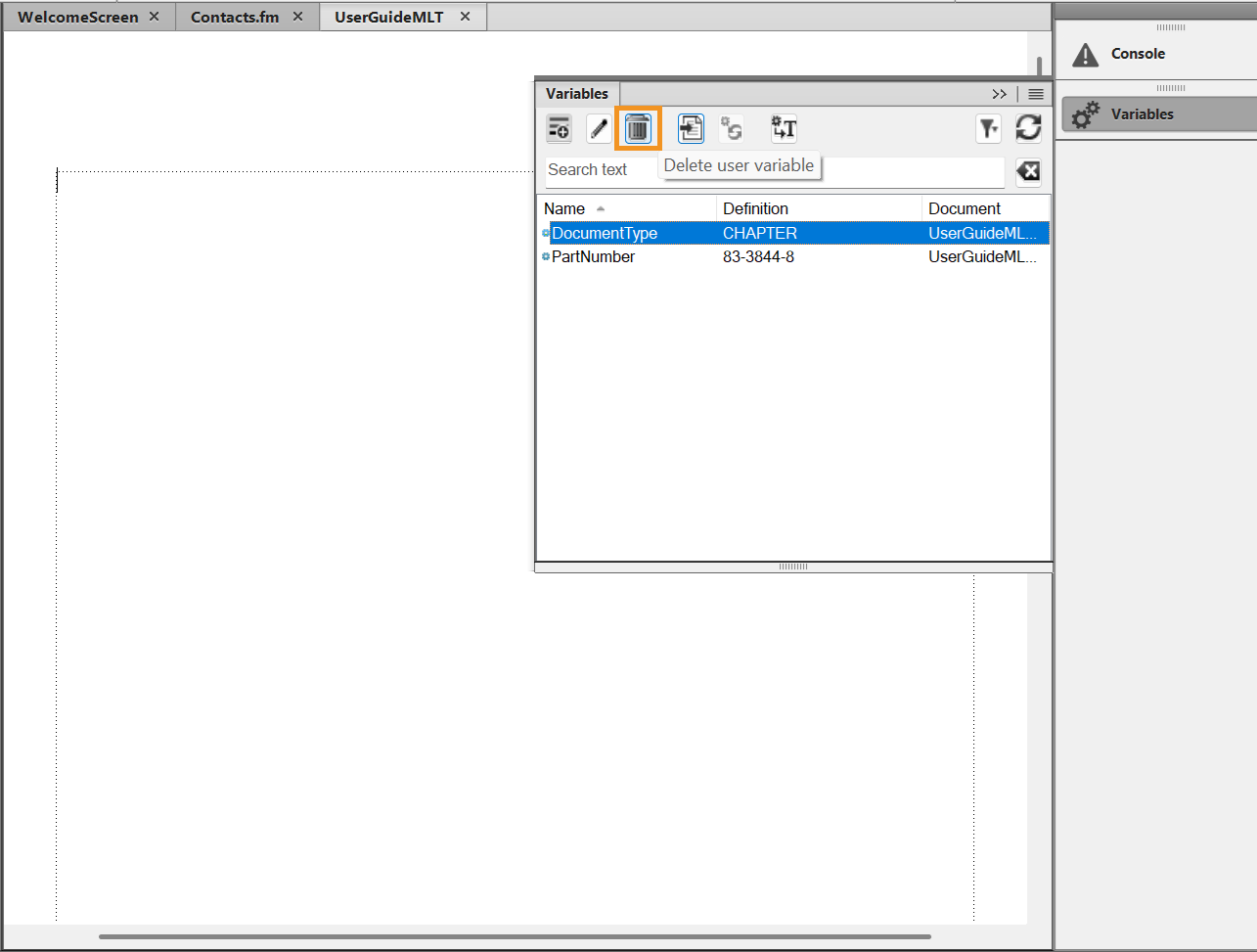
Select the element you want to delete.
Click the Delete icon.
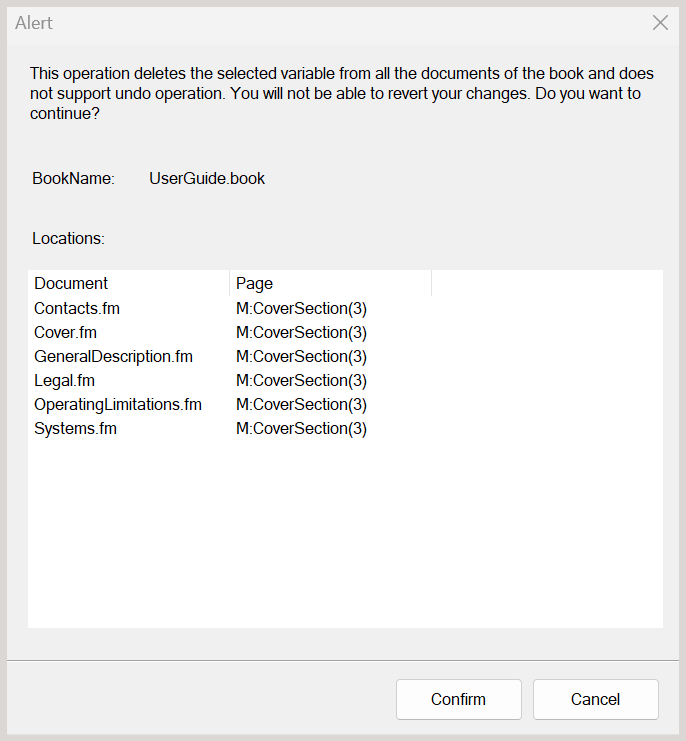
An Alert dialog box appears, listing all documents that use the selected variable/conditional tag. Review the list carefully to understand the impact, and then click Confirm to confirm the deletion.