Understand how to create a book-level template (.MLT file) in Adobe FrameMaker.
Perform the following steps to create a new book-level template file:
Open the FrameMaker book file for which you want to create a book-level template.
Select the book file and choose Insert > Book-Level Configuration.
Note: If your book contains more than 5000 variables or conditions, an alert is displayed to indicate that the action is a bulk operation and would take some time to process.The Set Up Book-Level Elements dialog box is displayed.
Review the available book-level elements in the Variable and Condition tab.
The elements are collected from all documents in the book. By default, all elements appear in the Do not include list.
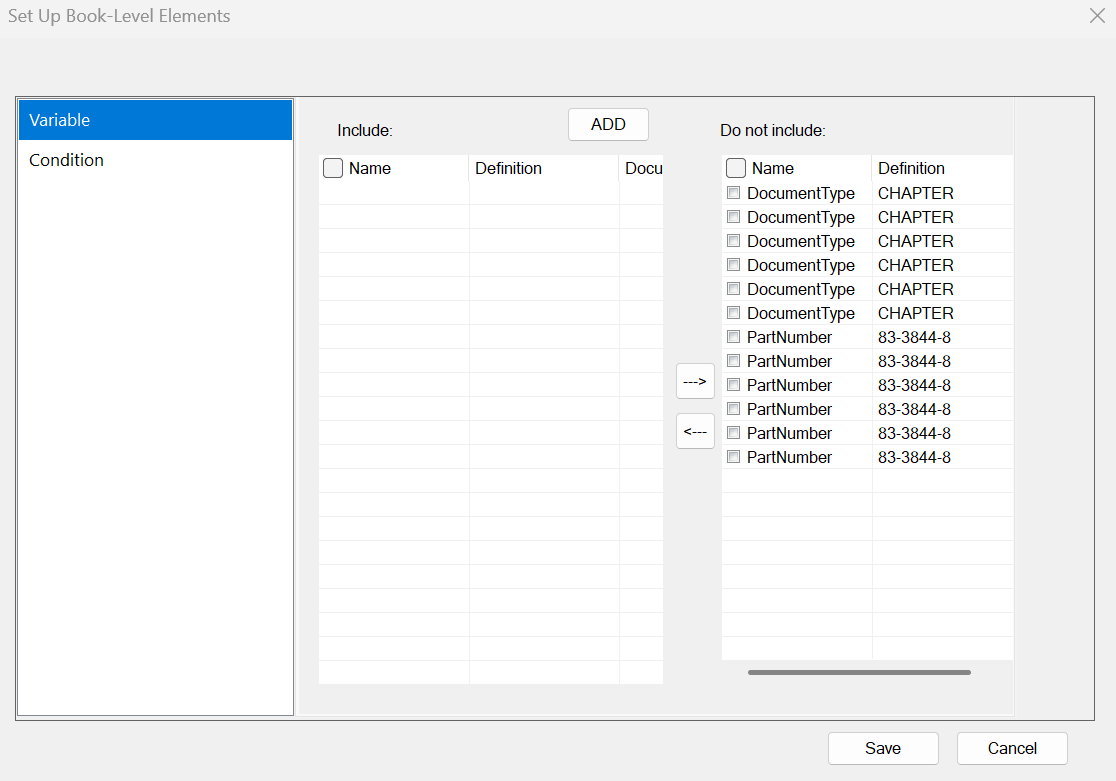
(Optional) To create a new book-level element for the template, click ADD.
To understand how to add a new variable, see Variables. For more information on creating a new conditional tag, see Conditional Text.
In the Do not include list, select one or more elements to add to the template.
Click <-- button to move the selected elements to the Include list.
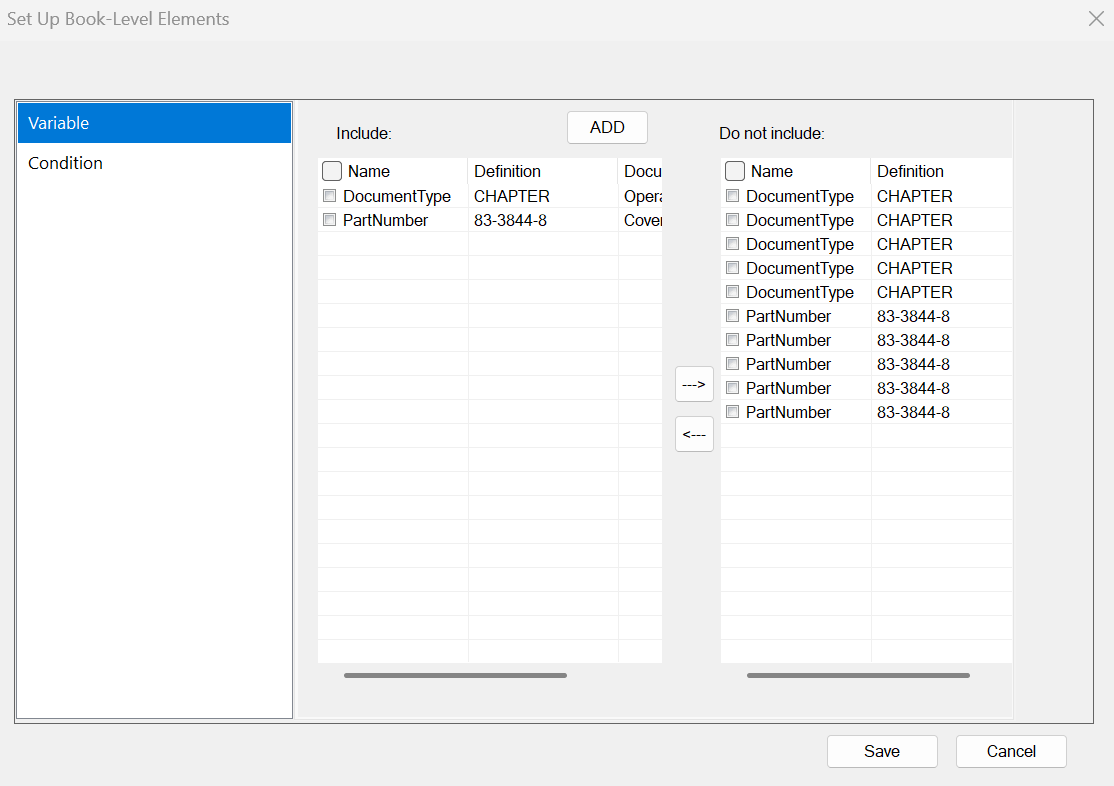
If you have accidentally added an element to the Include list, you can use the --> button to move it back to the Do not include list. The element is moved back to the list with its original state.
Click Save.
A confirmation message indicates that the selected elements are saved to the template (.MLT file).
(Optional) Click Update now if you want to update the changes now, otherwise Cancel. The Update now operation allows the new selections that you saved in the template to propagate to all documents in the book.
In the Update Book dialog, ensure that you select Template Elements option to include them in the book update operation.