Text edit tracking

Understand how you can track adding and deleting of text during review in FrameMaker.

The Edit > Track Text Edits option lets you enable a mode in which FrameMaker highlights added and deleted text for visual distinction. Editors and reviewers can use this feature to track, display, and preview changes by showing or hiding the edits.

FrameMaker tracks the changes with a user name and timestamp of the changes. If you share the document with other writers, such as in a team environment, you can determine the author and time of edits in the document. By default, FrameMaker uses the login name of the current user as the user name.

Tracked and untracked text edits: Examples

See what are the text edits that FrameMaker tracks or excludes.

The following table shows examples of types of text edits that FrameMaker tracks or excludes from tracking:

Tracked text edits

Untracked text edits

Adding and deleting text using the keyboard

Adding rows in tables

Adding text between deleted text

Modifying content in cross-references

Cutting, copying, and pasting text

Modifying content in markers

Inserting and deleting anchored frames

Modifying content in equations

Adding, editing, and deleting headers and footers

Adding or deleting text using APIs

Inserting and deleting footnotes

Inserting, modifying, and deleting graphics

Adding, editing, or deleting text within footnotes

Changing formatting

Modifying text using the Find/Change feature

Text within hypertext marker

Correcting spelling errors using the Spelling Checker feature

Adding and removing page breaks

Replacing text using the Thesaurus feature

Converting table to text

Inserting, deleting, and pasting cross-references

Replacing variables

Adding and deleting markers

Replacing cross-references

Importing and deleting file by reference or by copying

Adding and deleting the Conditional Tags marker

Inserting, pasting, and deleting variables

Importing by copying into MIF files

Editing text within a table cell

Inserting, pasting, and deleting tables

Inserting and deleting equations

Inserting Rubi

Changes to text in Rubi

Set scope for tracking text edits

Know how you can set up a scope up to which the tracking can be done in FrameMaker.

You can set the scope for tracking edits for the current book, DITA map, the current document, or selected documents. When you open a book or DITA map, the scope is set to Book or DITA Map by default.

To set the scope explicitly, do the following:

  1. Choose Edit > Track Text Edits > Scope.

  2. Select one of the following:

    • Document

    • Book

    • DITA Map

    • Selected Documents

Note: You can set the scope to Book or DITA Map only when they are open.

Set color preferences for tracking text edits

Understand how you can set color preferences for tracking text edits.

You can set the color preferences for text that is added or deleted in addition to the default formatting that FrameMaker applies: text that you add is underlined; deleted text is shown with strikethrough. Avoid setting the same text color that you defined for conditional tags so that text edits are clearly visible. In addition, when you preview or view the text edits, turn off conditional tag indicators to clearly differentiate the text edits.

  1. Choose Edit > Track Text Edits > Configure Color.

  2. Select or define the colors that you want for added text and deleted text, and click Set.

Display Track Text Edits toolbar

Understand the Track Text Edits toolbar in FrameMaker.

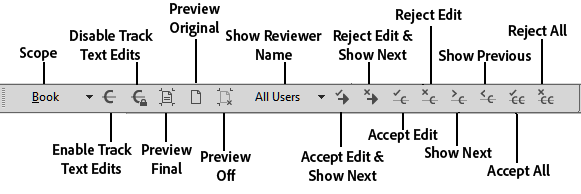
The Track Text Edits toolbar provides quick access to various commands for text edit tracking.


Track Text Edits toolbar in FrameMaker

To display the Track Text Edits toolbar, do the following:

  1. Choose View > Toolbars > Track Text Edits.

Turn text edit tracking on or off

Understand how you can turn text edit tracking on and off in FrameMaker.

By default, the Track Text Edits feature is turned off.

Choose Edit > Track Text Edits > Enable to enable text edit tracking.

Note: It is recommended that you have the documents open when you enable text edit tracking. FrameMaker cannot enable text edit tracking if the document has errors that prevent FrameMaker from opening it.

Choose Edit > Track Text Edits > Disable to disable text edit tracking.

Manage track text edits in a document

Learn to manage track text edits in a document in FrameMaker.

Various options in the Track Text Edits menu or on the Track Text Edits toolbar help you manage text edits.

Once you accept a text insertion or deletion, that text edit becomes part of the file. If you accept an insertion of text, the inserted text is retained. If you accept a deletion of text, the deleted text is removed. If you reject an insertion of text, the inserted text is removed. If you reject a deletion of text, the deleted text is retained in the file. The inserted or retained text acquires the formatting of its surrounding text.

To filter edits by author or reviewer name, choose Edit > Track Text Edits > Show Reviewer Name > [user name].

After selecting the reviewer name, you can do the following operations:

Note: To populate the reviewer names in a book or a DITA map, open the book or the DITA map, choose the desired scope and click Edit > Track Text Edits > Show Reviewer Name > Update User List. The reviewer names are automatically populated for a document.

Preview a document with track text edits

Understand how you can preview a document with track text edits in FrameMaker.

Before you accept all text edits, preview the final document to see how the text edits are incorporated in the document. You can also preview the original document without the text edits highlighted in the document.

Preview operations can also be done on all/selected documents of the book or DITA map by selecting the appropriate scope.

When you preview a document with text edits, the document display switches from the Tracking mode to the Preview mode. In the Preview mode, avoid making non-trackable changes to your document. For example, do not edit or apply conditions to text in the Preview mode. Such changes are not tracked and you may get an unexpected result in the final document.

By default, the preview of a tracked document is turned off.

Note: When you select the Preview Final or Preview Original option for the first time in your document, the Preview Off option is enabled. You can’t undo the Preview Final or Preview Original command in a document.

Saving and publishing a document with track text edits

Learn how you can save and publish a document with text edits in FrameMaker. You can also learn how to save a similar document as XML.

When you save a document after inserting text edits, the suggested edits are retained. When you print the document, FrameMaker prints the text edits as they appear in the document.

When you publish the document as a PDF, the text edits are retained and published to the output. If you publish a FrameMaker document to HTML or RTF, the text edits are accepted, and the document is published with the edited content. If the Preview mode is turned on, the document is published based on the Preview Final or Preview Original option you selected.

Saving a document with tracked text edits as XML

You can save a document with tracked text edits as XML. You can open the XML document in FrameMaker, enable tracking of text edits, and then edit the document. When you save the FrameMaker document back to XML, the edited information is preserved through the XML roundtrip.

If Conditional Tags roundtripping is disabled, all Track Text Edits information is lost during the XML roundtrip. By default, Conditional Tags roundtripping is enabled for any XML application.


April 29, 2020

Legal Notices | Online Privacy Policy