Learn how to create a book in FrameMaker.
Choose . If a document is active, an alert message asks if you want to include it in the book. A new book window appears showing the contents of the book.
Choose . A .book extension is added to the filename.
See how to add files in a book in FrameMaker. Know how to associate a structured application with an XML file.
In the book window, choose or click
.
Select the document file or files you want to add to the book, and then click Add.
You can add files by dragging them from Windows Explorer into a book window.
You can associate a structured
application with the .xml files included in a book.
Right-click the .xml file in the book window
and select Properties.
Select the structured application name from the Use Structured Application list box and click Continue.
Know how you can add generated files to a book in FrameMaker.
Open the book window and select the file next to where you want the generated file to appear.
Do one of the following:
Choose or choose , and then choose a type of list from the menu.
Choose , or choose , and then choose the type of specialized index you want to create.
The following generated list types are available:
List of Figures (LOF)
List of Tables (LOT)
List of Elements & Paragraphs (LOP)
List Elements & Paragraphs (Alphabetical) (APL)
List of Markers (LOM)
List of Markers (Alphabetical) (AML)
List of References (LOR)
Condition Tags
External Cross-Refs
Fonts
Imported Graphics
Text Insets
Unresolved Cross-Refs
Unresolved Text Insets
Learn how to organize the files in complex books in book folders.
You can add folders to your book and organize related documents in it. FrameMaker treats a folder as a logical container; it does not create a physical folder on the disk. A folder can have one or more folders, groups, or files within it.
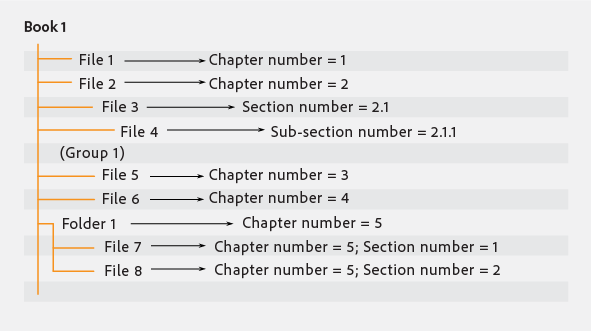
Depending on the level at which you add a folder, it can act like a chapter, section, or subsection. You can set special numbering styles for a folder and all its contents. You can also choose to exclude files from being published by selecting Exclude from the context menu.
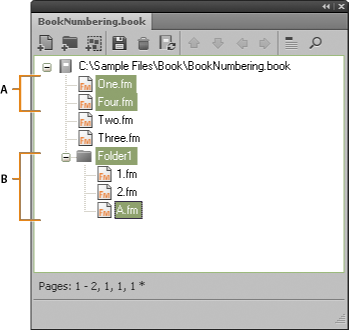
When you select a file in a book and add another file, the new file is added below and at the same level as the selected file. When you select a folder and add a file, the new file is added at the end of the files in the folder.

A. Select One.fm and add Four.fm. B. Select Folder1 and add A.fm.
Right-click the folder and select Properties.
Type a new folder name in the Title box and click Set.
Associate a template with a folder to publish a cover page for the files in the folder. Any template associated with a folder is published like any other file in a book. Use the <$chaptertitlename> variable to include the folder name in the template associated with the folder. You can use this variable for a folder occurring at any level in a book.
Right-click the folder and select Properties.
Select the Template Path check box, browse, and select the template filename. Click Open.
Click Set. The folder icon changes to indicate that a template is associated with the folder.
To open a template associated with a folder, right-click on the folder and select Open. This opens all the files under the folder including the template file.
See how you can create and add groups in a book file in Adobe FrameMaker.
You can create groups in a book file. Like folders, groups are also logical containers in a book file; they do not exist on the disk. The difference between a group and a folder is that a group does not change the hierarchy of the files within it. Also you cannot set up numbering styles for a group.
For example, the chapter number increments sequentially if the chapter is in a group. For files organized under a folder, the chapter number remains the same but the section number can increment sequentially. You cannot explicitly change the chapter number for files in a folder as the files inherit this property from the folder.

Learn to add a child book in a parent book in Adobe FrameMaker.
You can also add books within books. These can be unstructured book files or DITA maps. You can now include multiple child books at multiple levels in a book.
Open the parent book in which to add a child book.
In the book window, choose or click
.
Navigate to and select the .book file you want to add as a child book and click Add. Double-clicking the child book opens it in a separate Resource Manager pod.
A child book is treated as a placeholder within the parent book. You cannot edit a child book from within the parent book view. All maintenance tasks must be performed in the child book separately. For example, any book-wide operation on the parent book, such as spell check or find/replace works only on parent book files and not on the child book files. You should search and update child books separately.
Similarly, when updating a parent book for pagination and cross-references, ensure that you first update the child books and then update the parent book. This is because numbering and pagination information is stored at a book level. A book update on the parent book does not affect the page numbering within the files in a child book if the files in the child book are closed.
However, if the files from the child book are already open, then they are updated but not saved. You should always explicitly save all open files after a book update command or after applying a book-wide command.
When saving a parent book file as a PDF, FrameMaker updates information for only those files that belong to the parent book. To ensure that the information is correctly represented in the PDF for child books as well, do one of the following:
First update all child books and then their parent books before saving a book file as a PDF.
Open all files, including the files in the child books before saving the parent book file as a PDF. After creating the PDF, ensure that you save all the open files to preserve any updates.
Learn how to manage and update the direction of books in Adobe FrameMaker.
When you create a book and add documents to the book, the direction (left-to-right (LTR) or right-to-left (RTL)) of the book depends on the direction of the first non-generatable chapter or component in the book. For example, if a book contains some RTL documents and some LTR documents, the direction of the book is the direction of the first non-generatable document in the book.
Also, the direction of the lists (TOCs) and indexes in a book are based on the direction of the book.