Formatting tables
Table Designer
You can use the Table Designer and Table menu commands to change the look of tables and create new table formats, and to change formats globally throughout a document.
Using the Table Designer, you can change the table’s indents, cell margins, spacing, alignment, ruling, and shading. You can also adjust the title position, numbering, and the start position of the table. The space above and below a table, and the table’s alignment and indentation, are determined by the table format. You can control other positioning properties—straddling and text runaround—on a table-by-table basis.
The Table Designer includes several commands for creating, changing, and overriding table formats. The designer contains several groups of properties, displaying one at a time. It’s shown here displaying the Basic group of table properties.
Table Designer
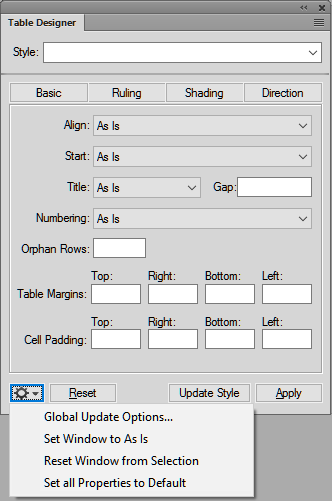
Basic
Paragraph properties such as indentation, spacing, and alignment.
Ruling
Ruling properties for headers, footers, separators, rows.
Shading
Shading properties for headers, footers, and body.
Direction
Specify the direction of the table text to as is, inherit (default), right-to-left, and left-to-right.
From the table Style field of the Table Designer, you choose a table format and then a property group. From the lower half of the Table Designer, you change the table’s properties. After making changes, click Apply to change the table’s appearance. Click Apply All, to change the definition of the format and globally change appearances of all tables using this format.
When you use the Table Designer to make a formatting change that doesn’t match the table’s predefined format, the change is a format override. Overrides are lost if you reapply the predefined format to the table. Changes made with the Table menu commands are not lost.
To remove all format overrides from a table, put the cursor in the table and click the desired table format from table catalog.
Display the Table Designer and a property group
1)Choose Table > Table Designer.
2)Choose a group of properties from the Properties pop-up menu or click a tab.
Apply property changes
Click Apply. When you make a formatting change that doesn’t match the table’s predefined format, it’s considered a format override.
note: You don’t need to click Update Style unless you want to make a global change—change the table format and all tables in the document with the same format. Because Update Style redefines a format, use it with caution.
Reset properties after changing them in the Table Designer
•To reset the properties to match the current table, including any format overrides, click in the table or click Reset in the Table Designer.
•To reset the properties to match the stored table format, choose the format from the table Style pop-up menu. Do this even if its tag is already displayed in the table Style box.