Add text to graphics
You can add single lines of text or text frames to a graphic.
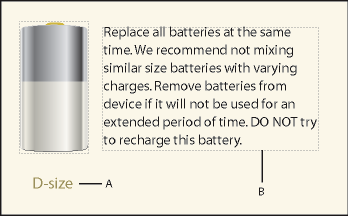
A.
Text line
B.
Text frame
A text line is a single line of text that FrameMaker XML Author treats independently from other text. Text lines grow or shrink in length as you edit them, but they don’t wrap to the next line. You typically use text lines for single-line callouts and for text you want to resize in the same way that you resize other objects.
You can assign character formats and a spell-checking language to text lines. However, text lines can’t have paragraph formats, and they can’t contain anchored frames, markers, variables, cross-references, or conditional text.
Unlike a text line, a text frame can contain more than one line of text. You use text frames for multiline callouts, paragraphs of text, and any other text you want FrameMaker XML Author to wrap automatically from line to line. When graphics overlap text in a text frame, you can run the text around the graphics.
tip: When you resize a text frame created with the Text Frame tool  , the font size remains the same. However, when you resize a text line created with the Text Line tool
  , the font height and width change proportionally.
Add a text line to a graphic
1)Click the Text Line tool  . The pointer changes to a crossed I-beam
  when you move it to the document window. The small horizontal line across the pointer indicates the baseline position of the text.
2)Click in the document to place an insertion point, and then type the text. FrameMaker XML Author uses the last character format you typed or selected in the document.
The text line is left aligned on its alignment point (where you clicked).
1)To create several text lines, press Return at the end of one text line to create another. You can then select the text lines independently and move them as needed.
Add a text frame
1)Click the Text Frame tool  .
.
2)Drag diagonally where you want to add the text frame.
3)Specify the number of columns and the gap between them, and then click Set.
4)Double-click in the text frame to place an insertion point in it, and then type the text.
Fix text frames that overflow
When the text you type overflows the text frame, the insertion point moves below the bottom of the frame and the new text doesn’t appear. The bottom border of the text frame appears as a solid line when borders are visible.
Overflowing text frame
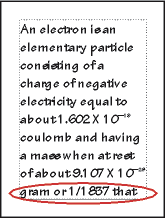
You can enlarge the frame so the text fits, or you can connect the flow of the text frame to another frame. You can also decrease the font size of the text.
1)Control-click the text frame to select it.
2)Drag a handle to enlarge the frame.
Create reverse text in a text frame
You can create reverse text (text that appears in a light color on a dark background) for special emphasis. The reverse text can be in a text frame or a text line.
1)Set the desired fill pattern and color of the text frame.
2)Set the text frame’s pen pattern to None.
Create a reverse text line over an object
1)Draw an object to act as the background for the text. Generally, it’s best to use a nearly black fill pattern for the object.
2)Outside the background object, add a text line and type its text.
3)Control-click the text line to select it.
4)Move the text line so part of it disappears into the background object.
Draw object and text line and then move line part of the way.
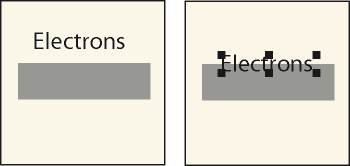
5)Choose a light color from the Color pop-up menu on the Tools panel. The text appears partially cut out of the background object.
If the text doesn’t appear in front of the object, choose Graphics > Bring to Front. If you still have trouble, make sure that the current color view of the document shows the text line’s color as Cutout.
6)Move the text line so all its letters appear cut out of the background object.
Choose a light color and then move the text line all the way.
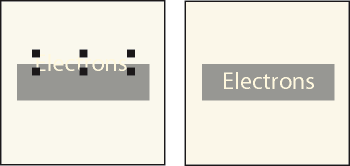
Add a title to an illustration
You can include a text line or text frame in a graphic as a title. You can also use a paragraph above or below an anchored frame as a title for the frame’s graphic. However, you may find it easier to use table commands instead.