Work with color in objects
The method you use to apply a color or a lightened version of a color (a tint) depends on the current selection. Any entry in a Color pop-up menu can be applied to FrameMaker XML Author text or objects. FrameMaker XML Author supplies a set of 16 standard colors that you can add to.
You can apply to:
•Object-level tints are tints you apply to an object that lighten the original color of the object by a specified percentage.
note: You can’t colorize TIFF files.
Apply a color or tint to text or an object using formatting features
1)Select the text or object to color or tint.
2)The Tint and Color pop-up menus on the Tools panel. The following table shows what features to use for tasks that vary:
|
To apply color or tint to |
Use |
|---|---|
|
Cells in a table |
The Color pop-up menu in the Custom Ruling and Shading dialog box, or in the Table Designer |
|
Change bars |
The Color pop-up menu in the Change Bar Properties dialog box |
|
Conditional text |
The Color pop-up menu and the New Color button in the Edit Condition Tag dialog box |
|
All drawn objects and text |
The Color pop-up menu in the Tools panel (hold down Shift+Alt and choose a color). |
Apply a tint to an object using a fill pattern
1)Select the object you want to tint.
2)Choose one of the first eight fill patterns from the Fill pop-up menu on the Tools panel. The fill patterns apply the following percentages to the current color of the object.
|
Fill Pattern |
Tint Percentage |
|---|---|
|
|
100% |
|
|
90% |
|
|
70% |
|
|
50% |
|
|
30% |
|
|
10% |
|
|
3% |
|
|
0% (color of paper) |
Set up and display color views
A color view specifies which colors are visible. For example, if your document uses black and a spot color, one view could display both colors and another view could display only the spot color.
Both colors visible and only one color visible
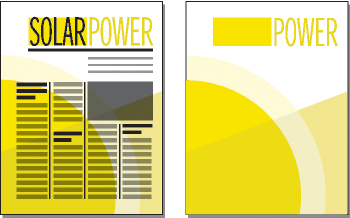
For each view you set up, specify which colors you want to display, which to display as cutouts, and which not to display at all. Cutouts display as white when overlapping different colored objects.
1)Make the appropriate document window or book window active. If a book window is active, select the documents you want to affect.
2)Choose View > Color > Views.
3)Select a view number and move the color names to the appropriate scroll lists. Tints do not appear in this dialog box; they appear along with the color they were based on.
To move a color, select it and click an arrow, or double-click it. To move all colors, select a color and Shift-click an arrow. To reset any changes you’ve made, click Get Default.
tip: Leave View 1 unmodified, with all colors (except white) in the Normal scroll list. When you draw an object in a color that is invisible in the current view, FrameMaker XML Author automatically switches to View 1.
4)Repeat step 3 for each view you want to set up, and then click Set. The currently selected view is displayed.