Straddle or unstraddle tables and cells
Tables can straddle columns in multicolumn layouts, and their positions are sometimes affected by straddle paragraphs. Straddling does not affect the structure of a table and is not a format rule override.
Straddle a table
1)Do one of the following:
•Anchor the table in a straddle paragraph. A table anchored in a straddle paragraph, whatever the table’s width, always straddles the full width of the text frame.
•In case of structured documents, anchor the table in a paragraph element that’s formatted to straddle the columns. If the table is wide enough, it straddles the full column width. If it is not wide enough, the plane of the table nevertheless straddles the full width.
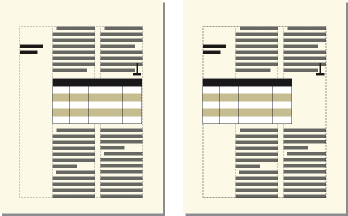
A table anchored in a straddle paragraph

•Extend the table width into a second column of the body area. If you want the table to straddle both the side-head area and the body area, extend it into the side-head area as well.
Straddling all columns and straddling side-head area
Unstraddle a table
•To unstraddle a table that’s anchored in a straddle paragraph or paragraph element, move the anchor to a nonstraddle paragraph or nonstraddle element.
•To unstraddle a table that’s anchored in an unstraddled paragraph or paragraph element, resize the column widths of the table to fit in the text column.
Straddle or unstraddle cells
If you straddle cells that have contents, the contents of those cells also merge, creating a separate paragraph for each merged cell.
1)Do one of the following:
•Select the cells you want to straddle, and choose Table > Straddle.
•Select the cells you want to unstraddle, and choose Table > Unstraddle. The contents of the straddle cell appear in the upper left new cell, not back in the original cells.
important: The contents of an anchored frame or a disconnected text frame are not part of a document’s main structured flow, so they are not normally exported to SGML. If you plan to export to SGML, work with your application developer to avoid losing data in the table.