Manage open files
Currently Opened Files pod lets you manage and navigate through large number of open files. Using the Currently Opened Files pod, you can:
1)Review and save files with unsaved changes
2)Search for a file with a specific name or files saved in a particular folder
3)Navigate across different files
4)Review the path of the various open files
5)Close specific files after saving or without saving
The Currently Opened Files pod
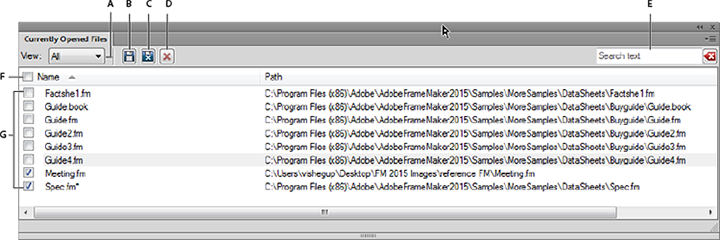
A. Select All, Unsaved, or Saved to filter results B. Save files and keep them open C. Save the selected files and close them D. Close the selected files - if there are unsaved changes in the files you are trying to close, the Save Files dialog appears E. Search - As you type, the pod matches the search criteria with entries in all the columns F. Clear search criteria G. Select all the currently opened files H. Select the currently opened files
You can display the Currently Opened Files pod by selecting View > Pods > Currently Opened Files.
See the video: Currently opened files pod.
Save files on file close and exit
FrameMaker displays the Save Files dialog when you attempt any of the following:
•Exit FrameMaker by
–Clicking the Close button
–Selecting File > Exit
–Right clicking in the Status Bar and selecting Close all windows
–Using Alt+F4 on the keyboard
•Select Shift+File and select one of the following options
–Close All Open Files
–Close All Files in Book
–Close All Files in Ditamap
•Try to close files without saving in the Currently Opened Files pod
The Save Files dialog
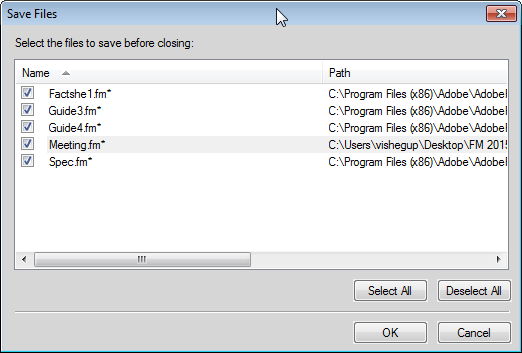
In the Save Files dialog, you can review and save unsaved changes files. You can also discard the changes by deselecting the files and clicking OK.
Save and close open files
You can see a list of currently open documents in the Currently Opened Files pod. Using the Currently Opened Files pod, you can select the files and changes to save and discard.
Save
1)Do one of the following:
•Select File > Currently Opened Files.
•Select View > Pods > Currently Opened Files.
FrameMaker displays the Currently Opened Files pod. Unsaved files and files with unsaved changes are indicated with asterisk (*). To locate files in a long list, type in the Search box. FrameMaker matches the text in the name of the file as well as the path.
2)Select the files to be saved and do one of the following:
•Click Save.
FrameMaker saves the selected files. FrameMaker prompts you to specify the name and path of the files that are not saved to the disk yet.
•Click Save and Close.
FrameMaker saves and closes the selected files.
•Close Files.
FrameMaker closes the selected files. If you choose to close any files with unsaved changes, the List Of All Open Files dialog appears.